























Feature · About 2 minutes
Your family, right on the Home Screen
See who needs what next without opening the app. Tap a face, add a record, or ask a question, straight from your Home Screen.
By the KinLine team · Updated
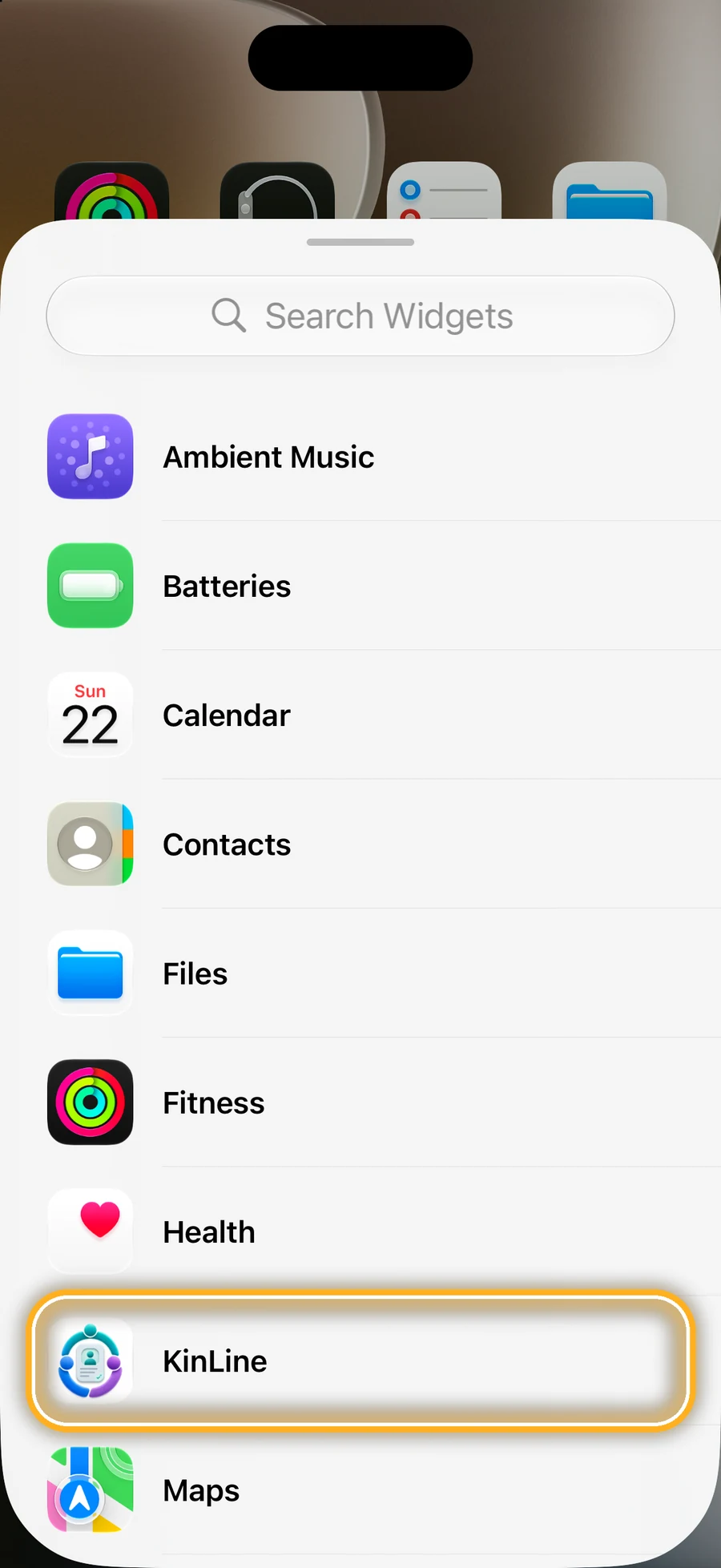
Step 1: Touch and hold the Home Screen, then Add Widget
Touch and hold an empty spot until the apps jiggle. Tap the button in the top-left corner, then Add Widget, and pick KinLine.
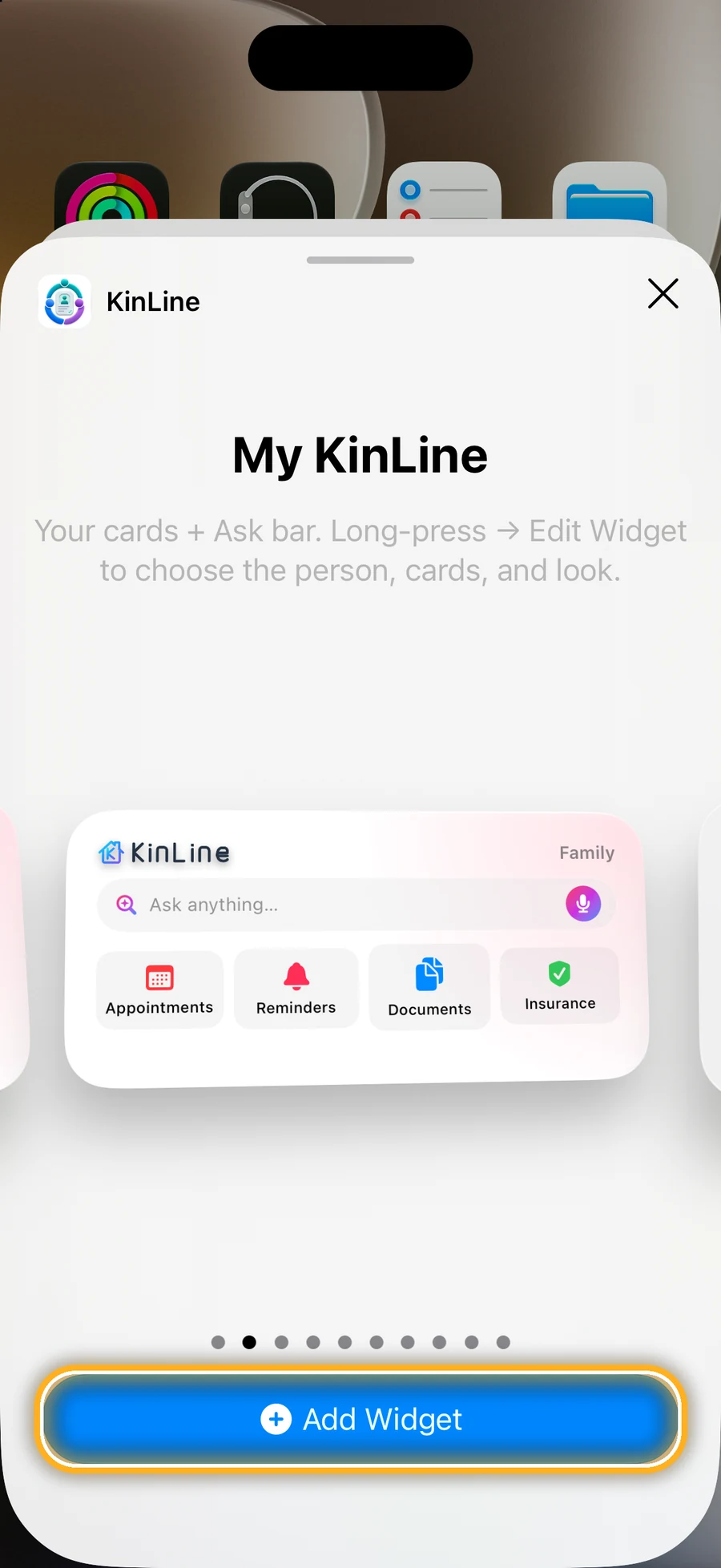
Step 2: Swipe to choose, then Add Widget
My KinLine keeps a search bar and your favorite cards one tap away.
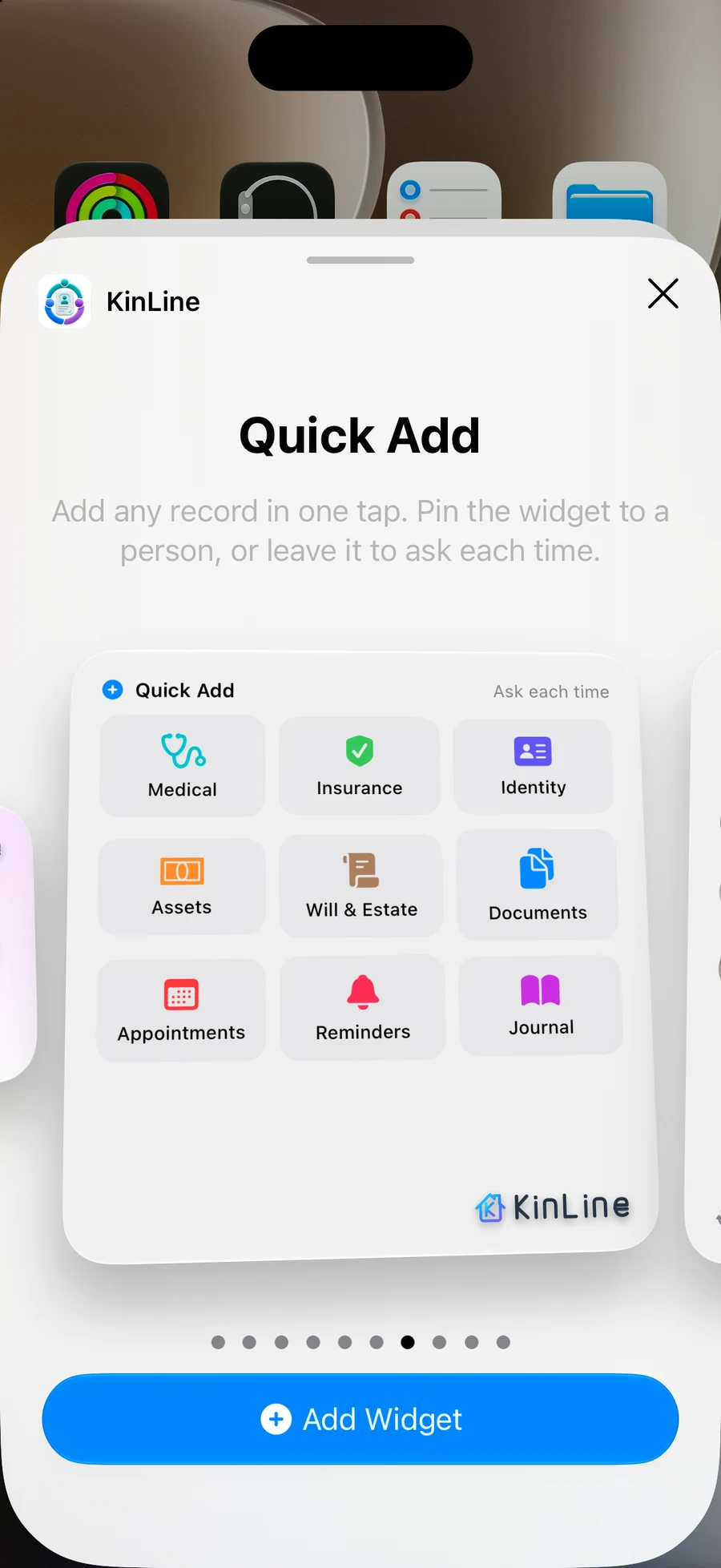
Step 3: Add a record in one tap
Quick Add opens the right form straight away. Pin it to one person, or let it ask each time.
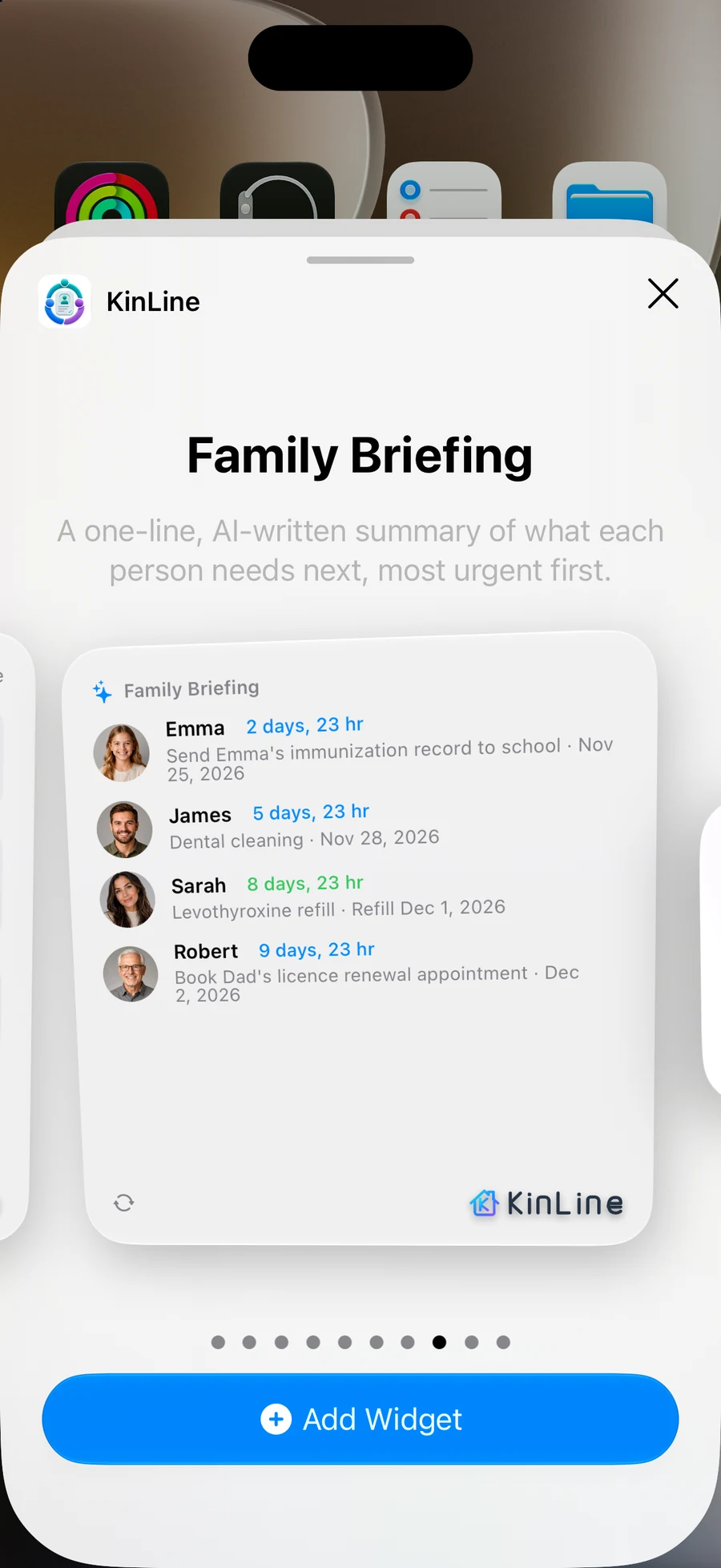
Step 4: What each person needs next
Family Briefing lists everyone, the most urgent first.
Quick questions
- Which KinLine widgets are there?
- My KinLine (your cards and a search bar), Family (everyone's photo), Ask KinLine, Quick Add, Family Briefing and Write Journal.
- Can a widget show just one person?
- Yes. Touch and hold the widget, tap Edit Widget, and choose the person, the cards and the look.
- What does Family Briefing show?
- One line for each person about what they need next, the most urgent first. On iPhones with Apple Intelligence, the lines are written more naturally.
- Is there a widget on Android?
- Not yet. KinLine's widgets are on iPhone.
One glance in the morning.
KinLine is free to start. No account, no sign-up.


Free to download · No account needed