


Picture guide · About 10 minutes
Just downloaded KinLine? Start here.
Follow the pictures. They show a sample family: Robert (Dad, 71), Sarah, James and their daughter Emma. The gold circle in each picture is where you tap.
The map: three taps to anything
Everything in KinLine belongs to one person. So you always start the same way: pick the person, then the card.
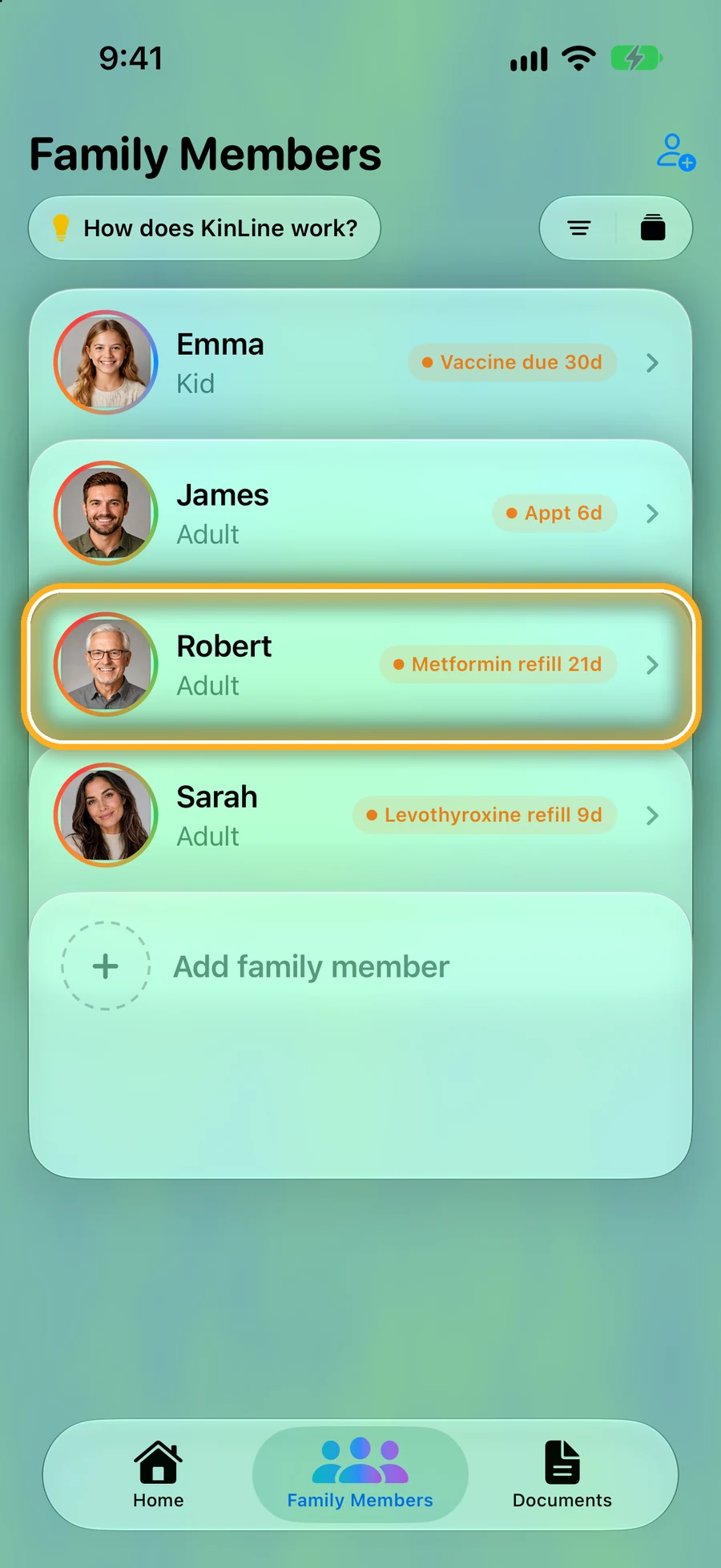
1. Family Members
Everyone you look after. Tap a person.
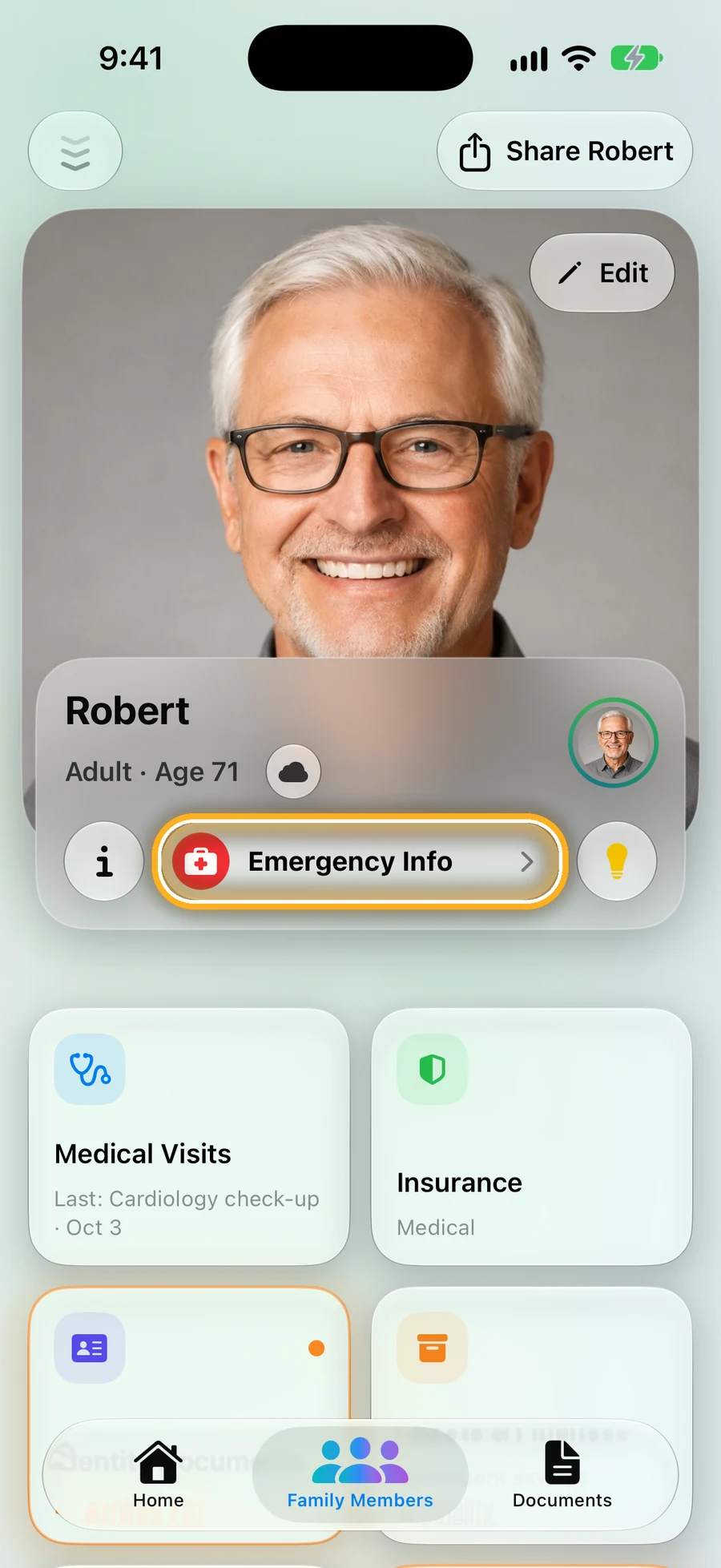
2. Their page
Their 9 cards, and a red Emergency Info button.
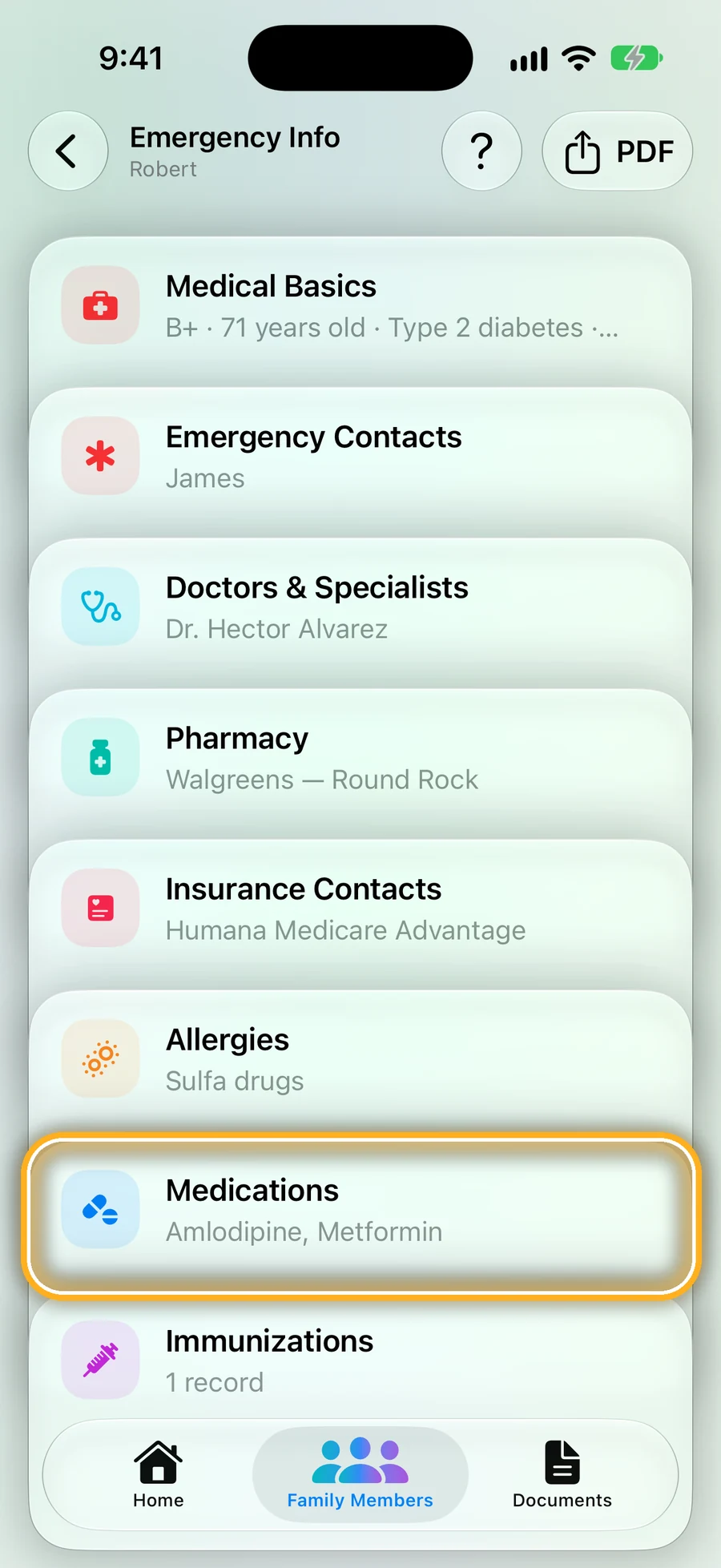
3. Emergency Info
Medicines, allergies, doctors and who to call.
The three buttons at the bottom
- Home
- What's coming up for everyone: refills, visits, renewals.
- Family Members
- Everyone's pages. KinLine always opens here.
- Documents
- Every photo and PDF, sorted by person.
Add your first person
You, a child or a parent. Start with the person you worry about most.
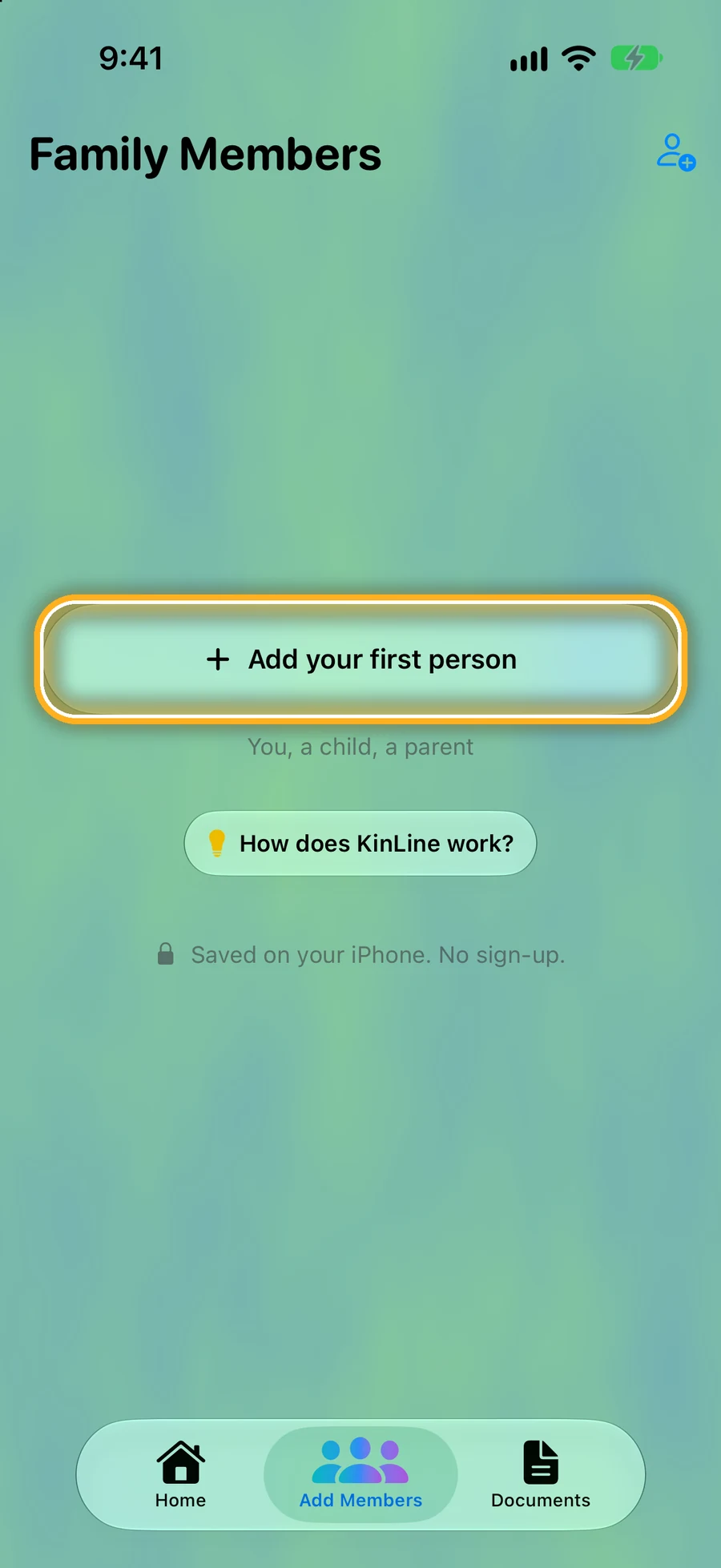
Step 1: Tap “Add your first person”
This is the first thing you see. There's no sign-up screen before it.
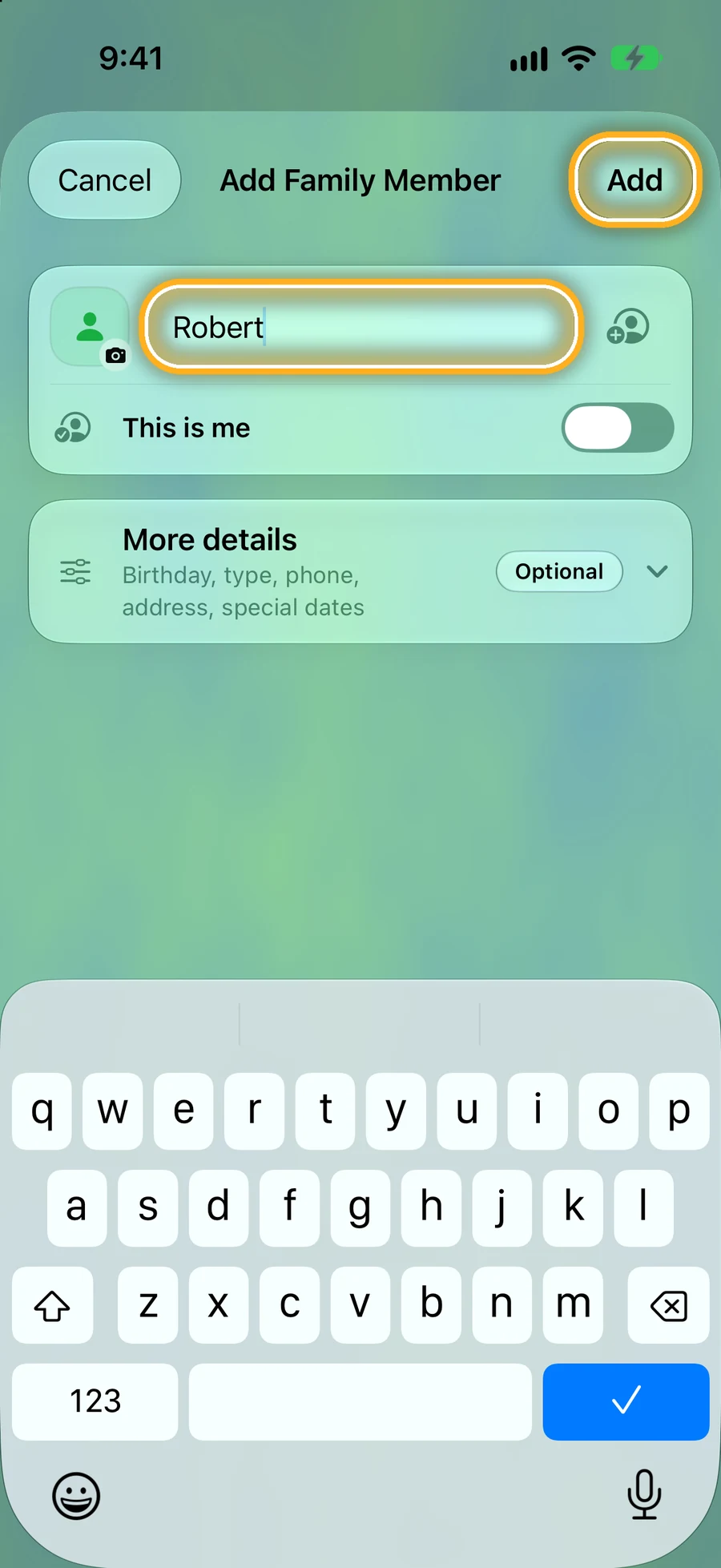
Step 2: Type their name, then tap Add
The name is all you need. Everything else can wait.
Adding yourself? Turn on “This is me”. To add a photo, tap the small camera.
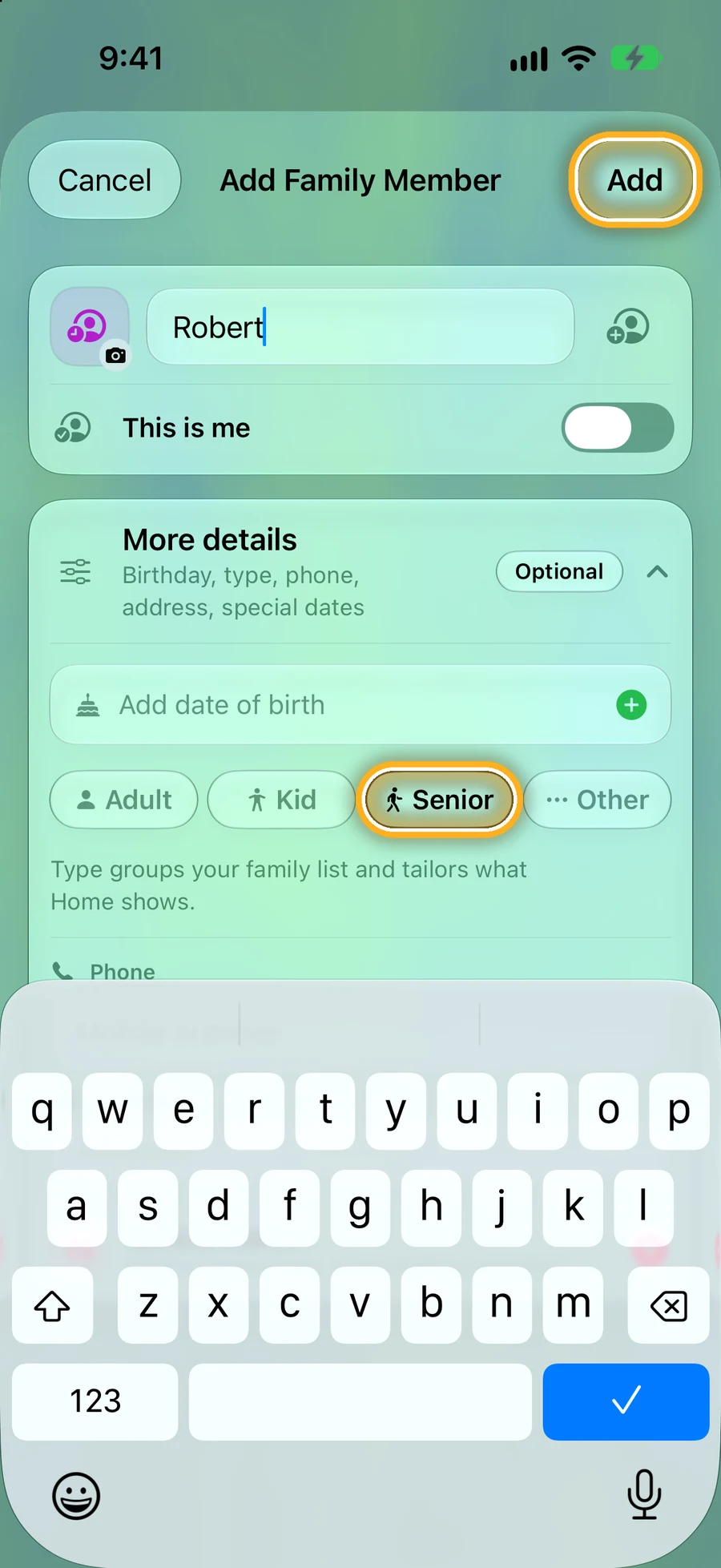
Step 3: Want more? Open “More details”
Add a birthday, a phone number, or the type: Adult, Kid, Senior. It's optional, and you can add it later with Edit.
Step 4: Everyone shows up in Family Members
Add the rest of your family the same way, with the + at the top.
The small orange note on each row is the next thing coming up for that person, like a refill or a vaccine. Tap a person to open their page.
Each person's page, and their 9 cards
Every person gets the same cards, in the same places. Learn them once and you can find anything for anyone.
Step 5: The top of the page
Robert's photo and name, and the red Emergency Info button. That's the one to remember for a hospital visit.
The first time you open a person, KinLine shows a short tip. Tap anywhere to close it.
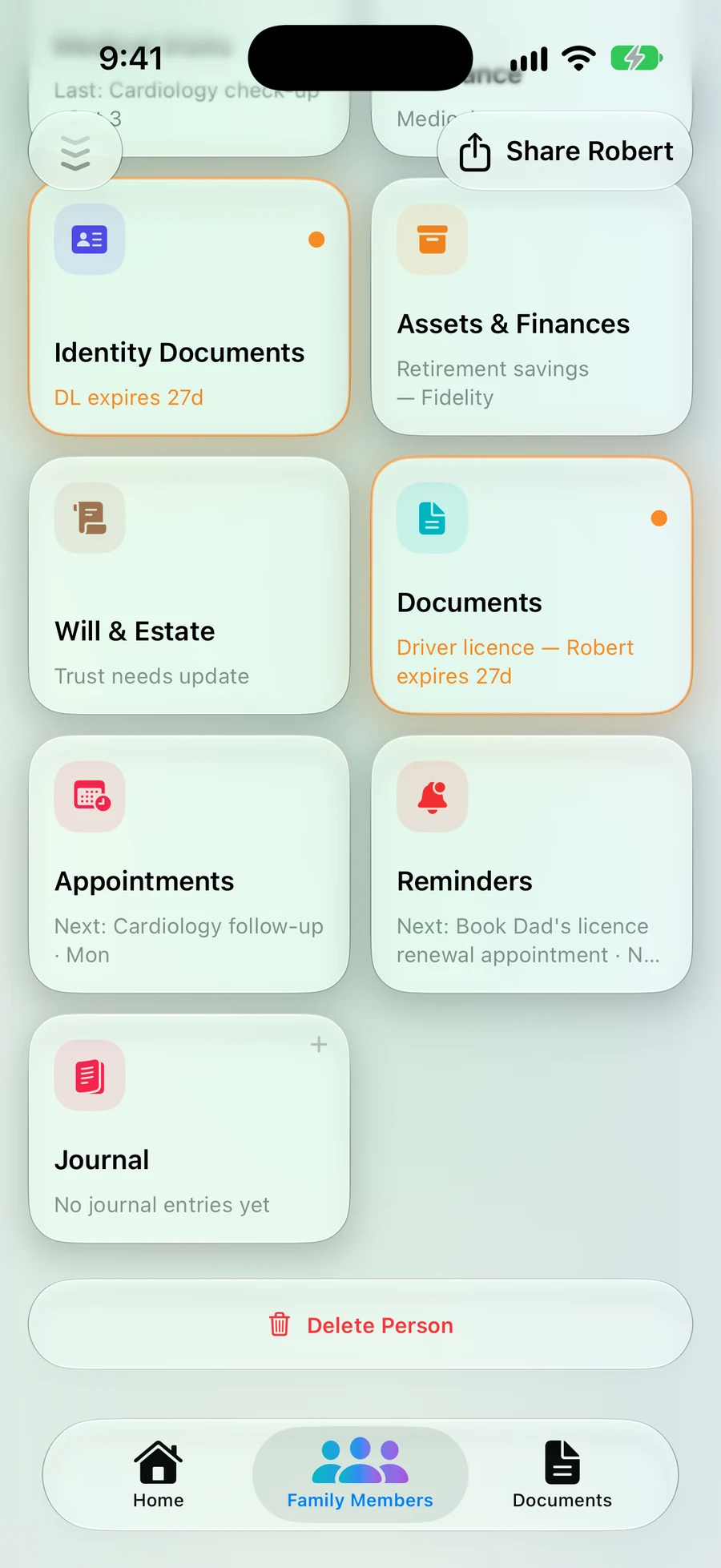
Step 6: Scroll down to the cards
Each card shows what's inside, like “Retirement savings — Fidelity”. Tap a card to open it.
A card with something due soon gets an orange ring and moves to the front. Here, Robert's driver's license expires in 27 days.
What goes in each card
- 1Medical VisitsEach doctor visit: why you went, what they said, tests.
- 2InsuranceHealth, dental, car or home policies, with the card photo.
- 3Identity DocumentsPassport, driver's license, Medicare card, birth certificate.
- 4Assets & FinancesBank and retirement accounts, valuables, what's where.
- 5Will & EstateWill, trust, power of attorney, and who holds the original.
- 6DocumentsAny photo or PDF, in folders if you like.
- 7AppointmentsUpcoming visits, with time and place.
- 8RemindersRefills, renewals and anything you don't want to forget.
- 9JournalNotes and memories, like a first day of school.
Add one thing: an insurance card
Every card works the same way. Here's Insurance as the example.
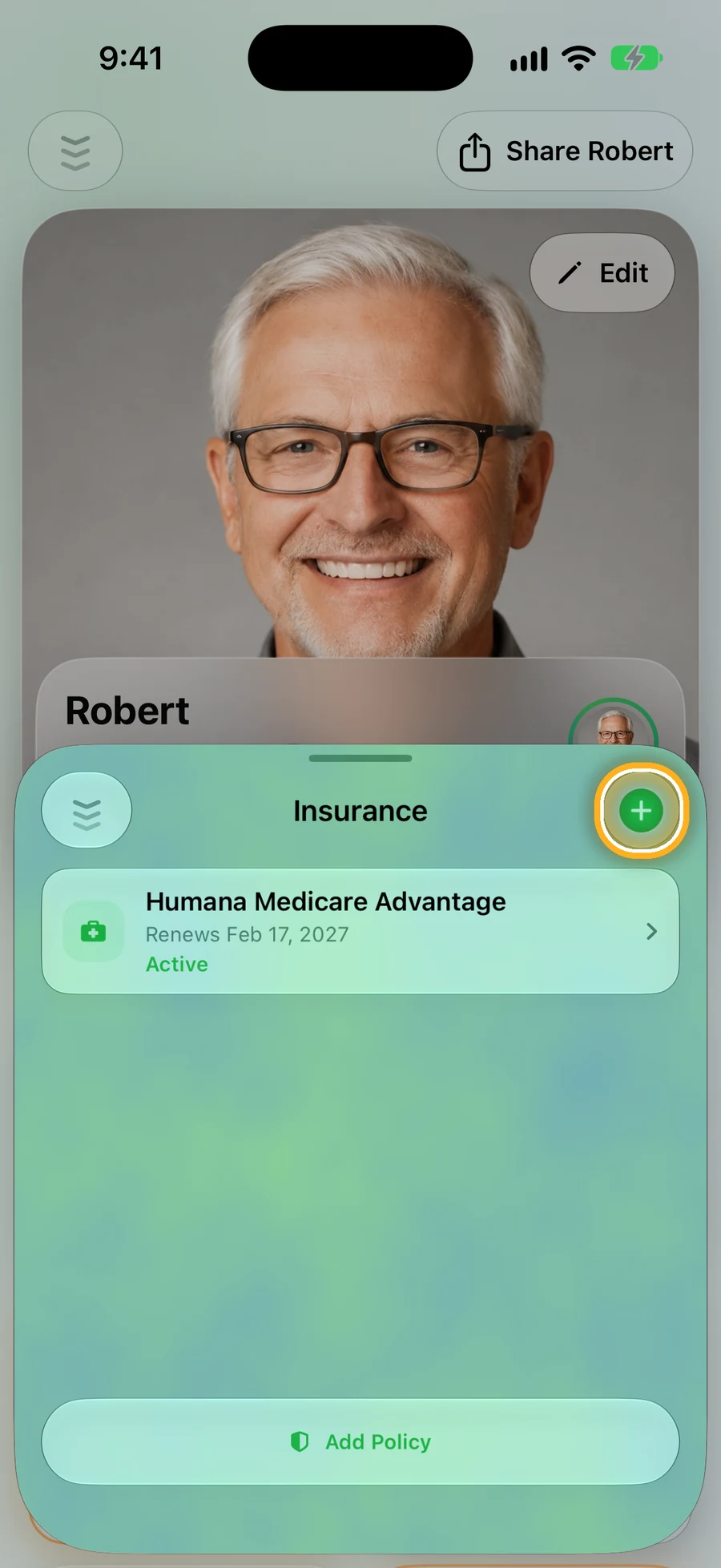
Step 7: Open the card, then tap +
The card opens as a list. Robert already has one policy here. The + (or the button at the bottom) adds another.
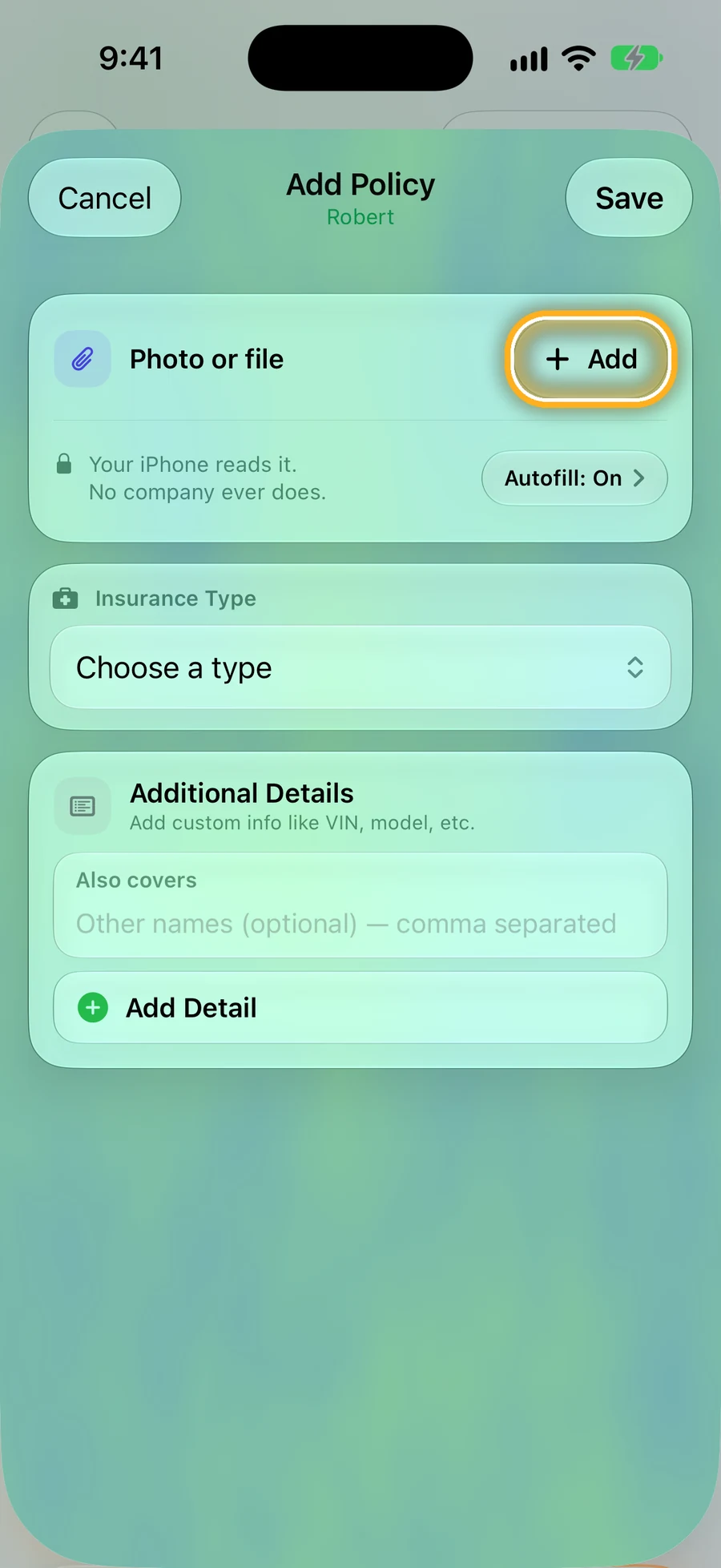
Step 8: Take a photo of the card
Tap Add next to “Photo or file” and take a picture of the insurance card.
On newer iPhones, KinLine reads the photo and fills in the boxes for you. It happens on your phone. Check the boxes, then tap Save. You can always just type instead.
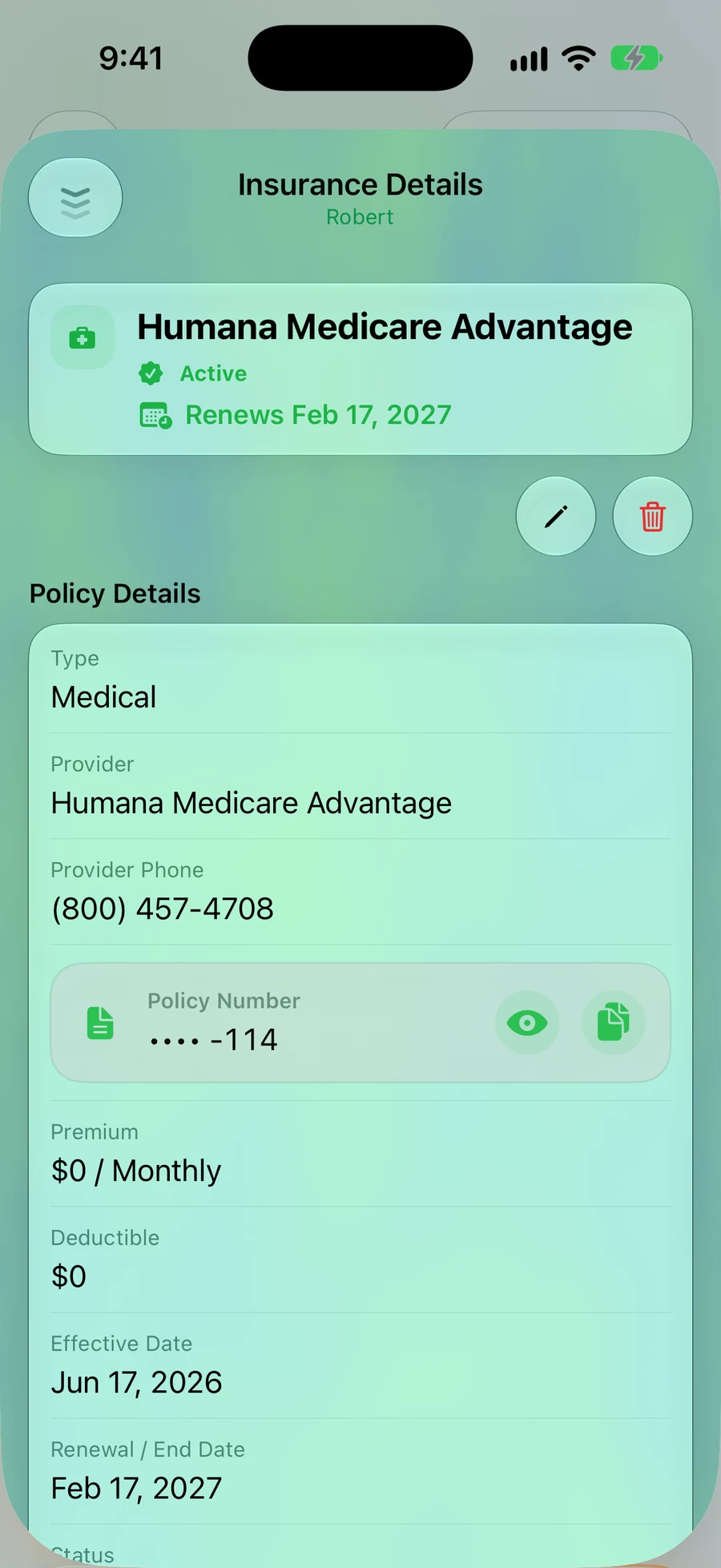
Step 9: It's saved. Tap it any time
The phone number is right there to call. Numbers like the policy number stay hidden until you tap the eye.
Emergency Info: the page for a bad day
When a nurse asks what medicines Dad takes, this is where you look. Fill it in on a calm day.
Step 10: Tap the red Emergency Info button
It has 8 parts, each with its own list:
- Medical basics: blood type, conditions
- Emergency contacts, doctors, pharmacy
- Insurance contacts
- Allergies, medications, immunizations (shots)
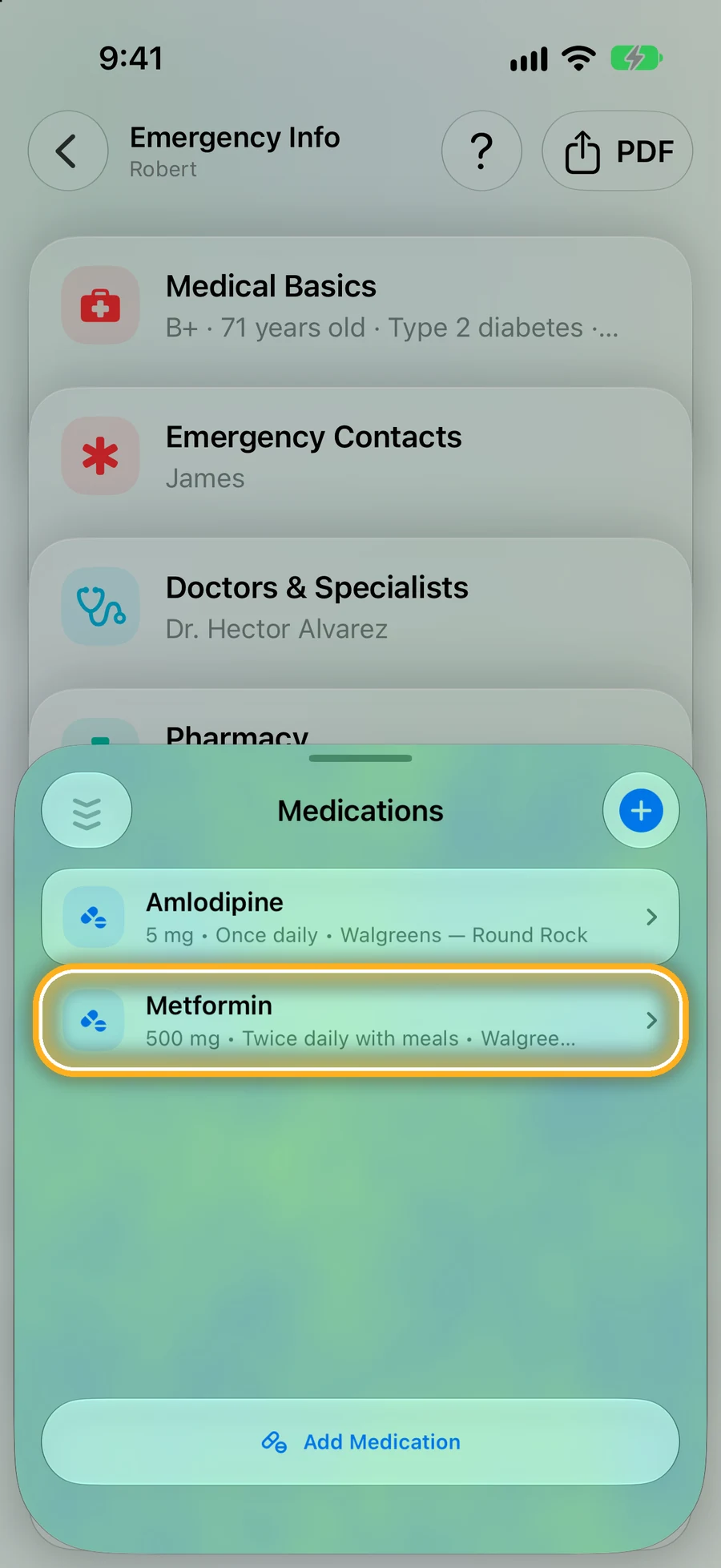
Step 11: Tap Medications
Each medicine shows its dose and how often. Tap + to add one.
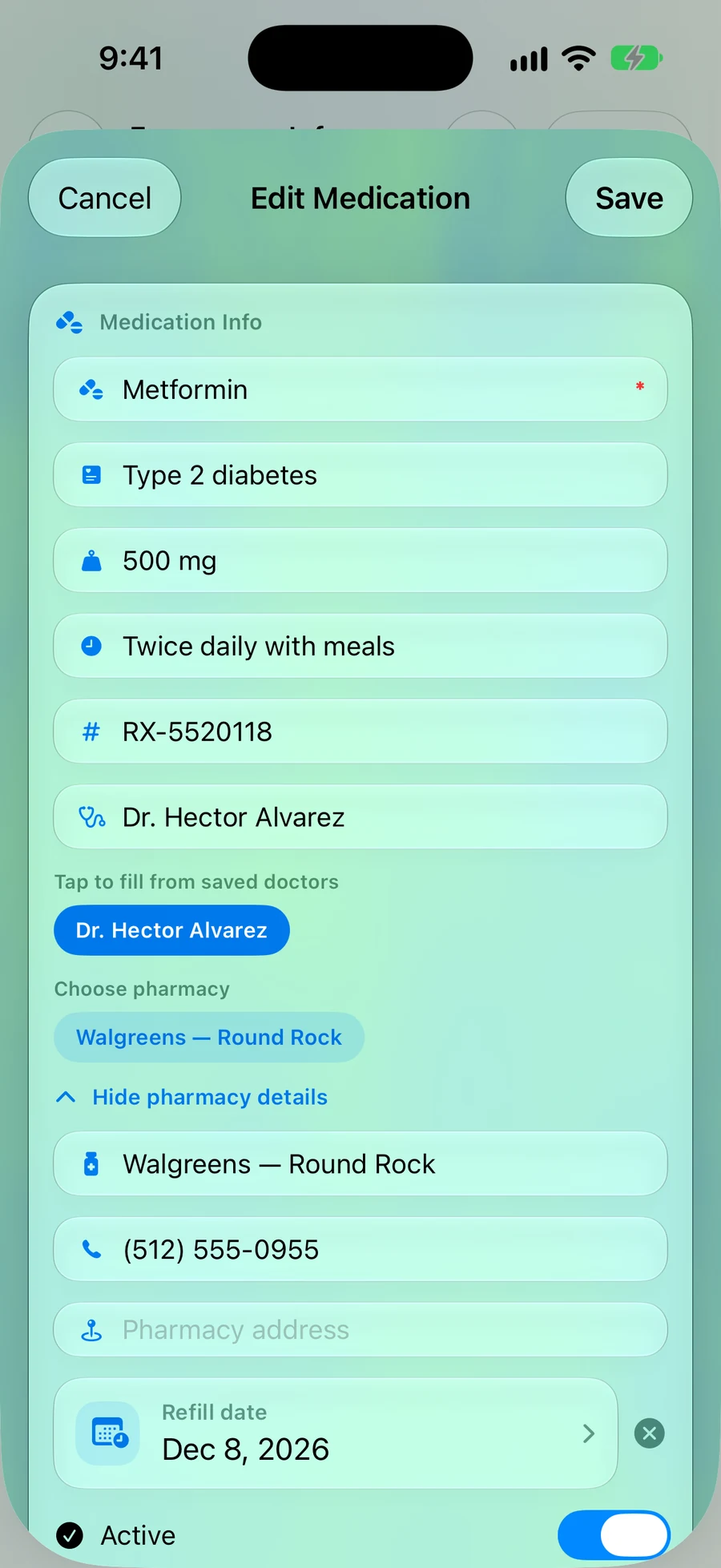
Step 12: Tap a medicine to see everything
Dose, how often, the doctor, the pharmacy and its phone number, and the refill date. KinLine reminds you before the refill.
Hand over one page: the emergency PDF
For the ER, a babysitter or the school. On iPhone.
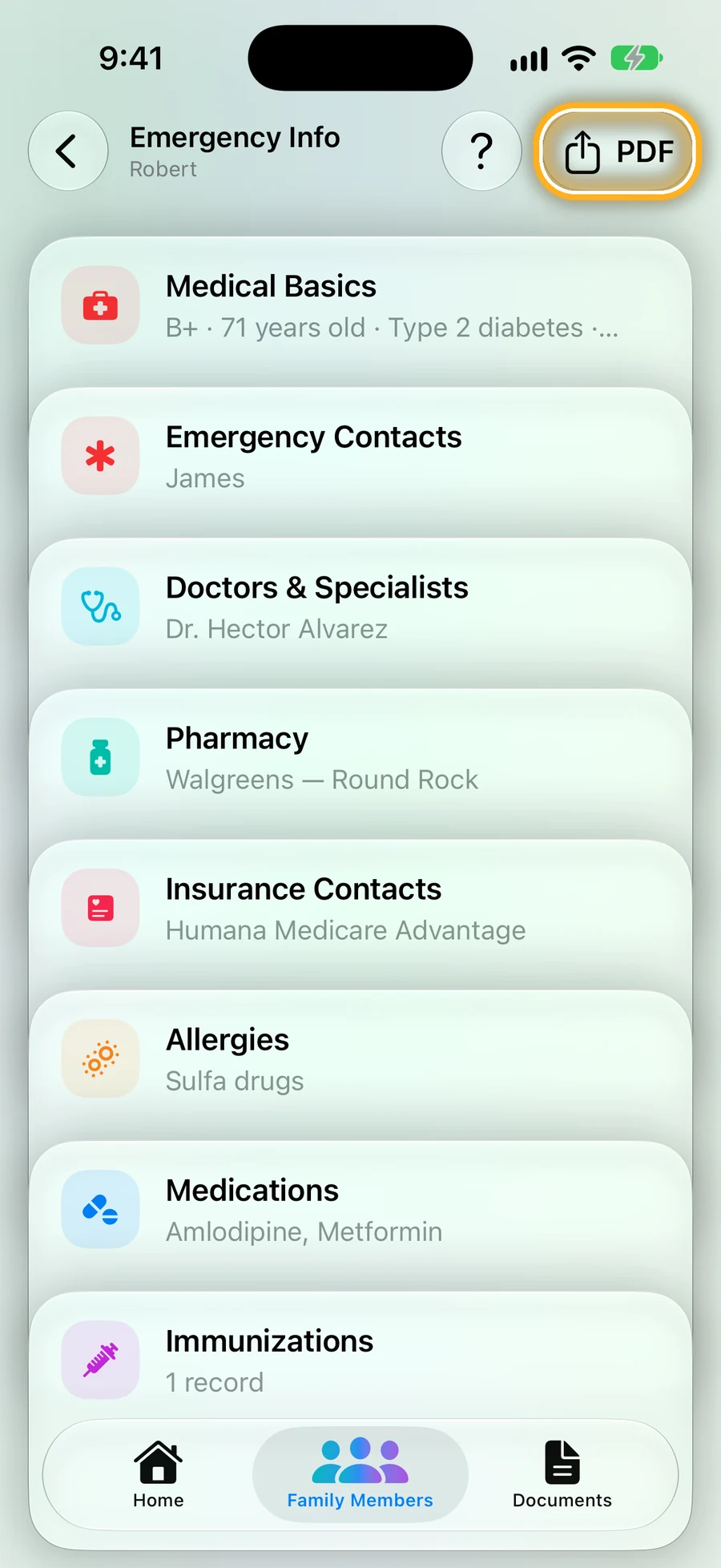
Step 13: On Emergency Info, tap PDF
It's at the top right of the Emergency Info page.
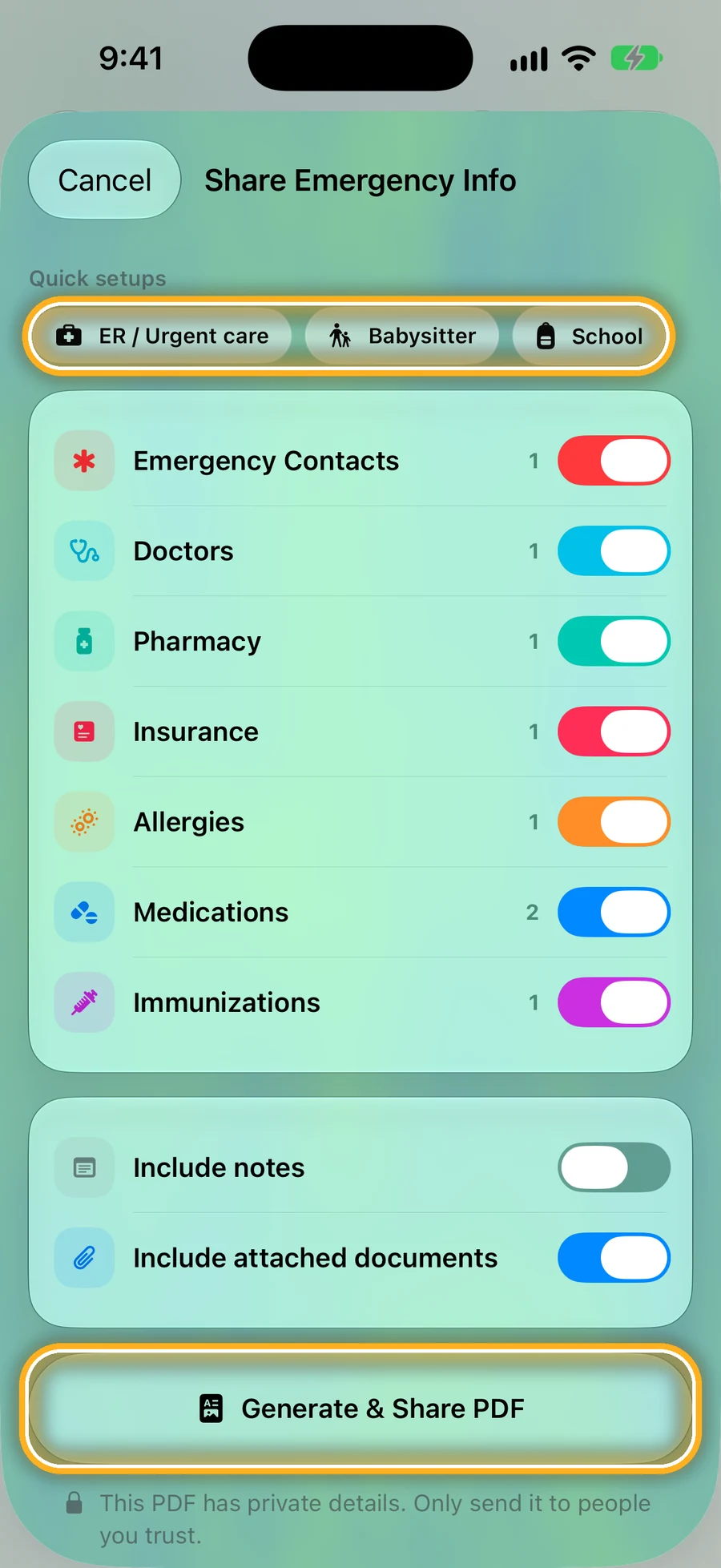
Step 14: Pick who it's for, then Generate & Share
Tap ER / Urgent care, Babysitter or School, and KinLine picks the right parts. Or switch parts on and off yourself.
Then send it by Messages or email, save it, or print it. Only send it to people you trust.
Home and Documents
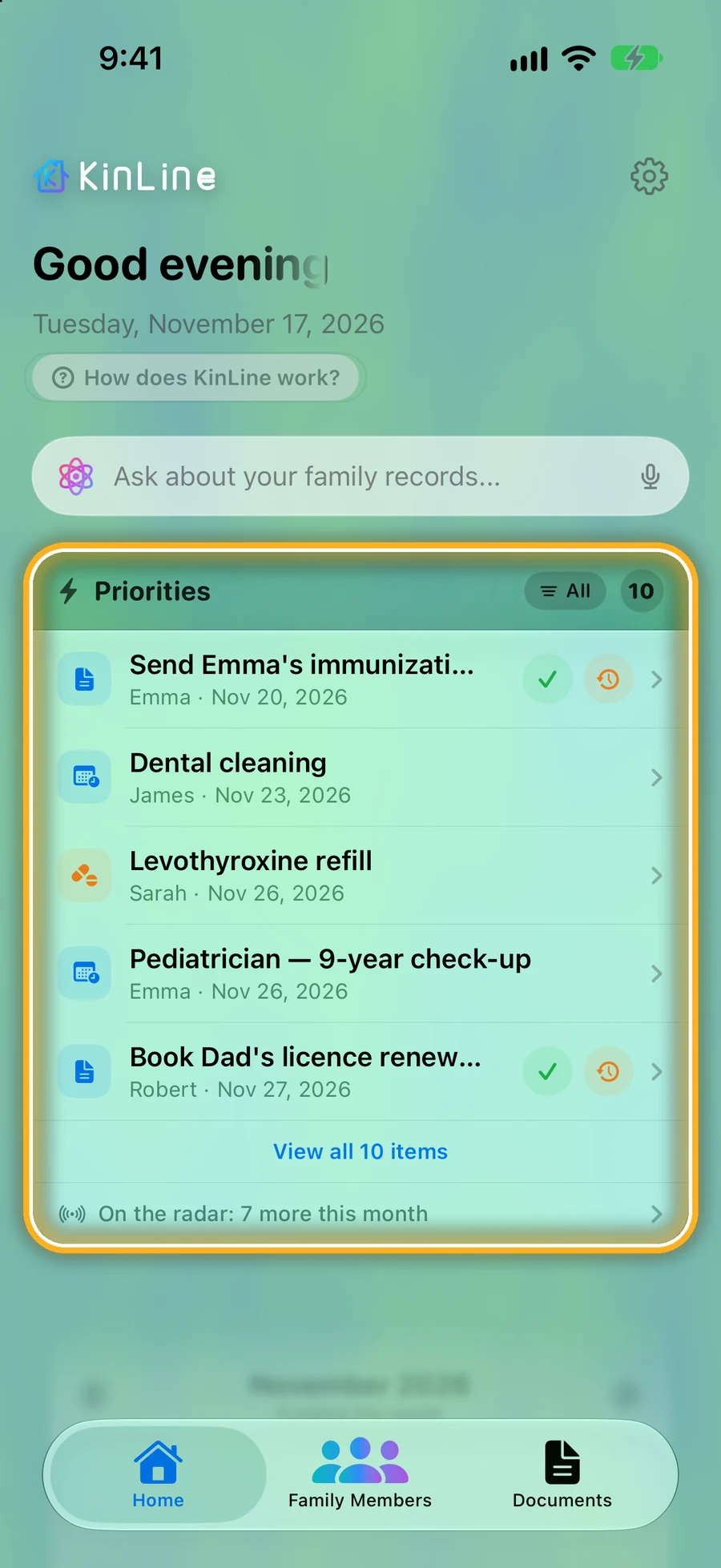
Step 15: Home shows what's coming up
Refills, appointments and renewals for the whole family, soonest first. Tap ✓ when it's done, or the clock to be reminded later.
You can also type a question in “Ask about your family records”, like “When does Emma's passport expire?”
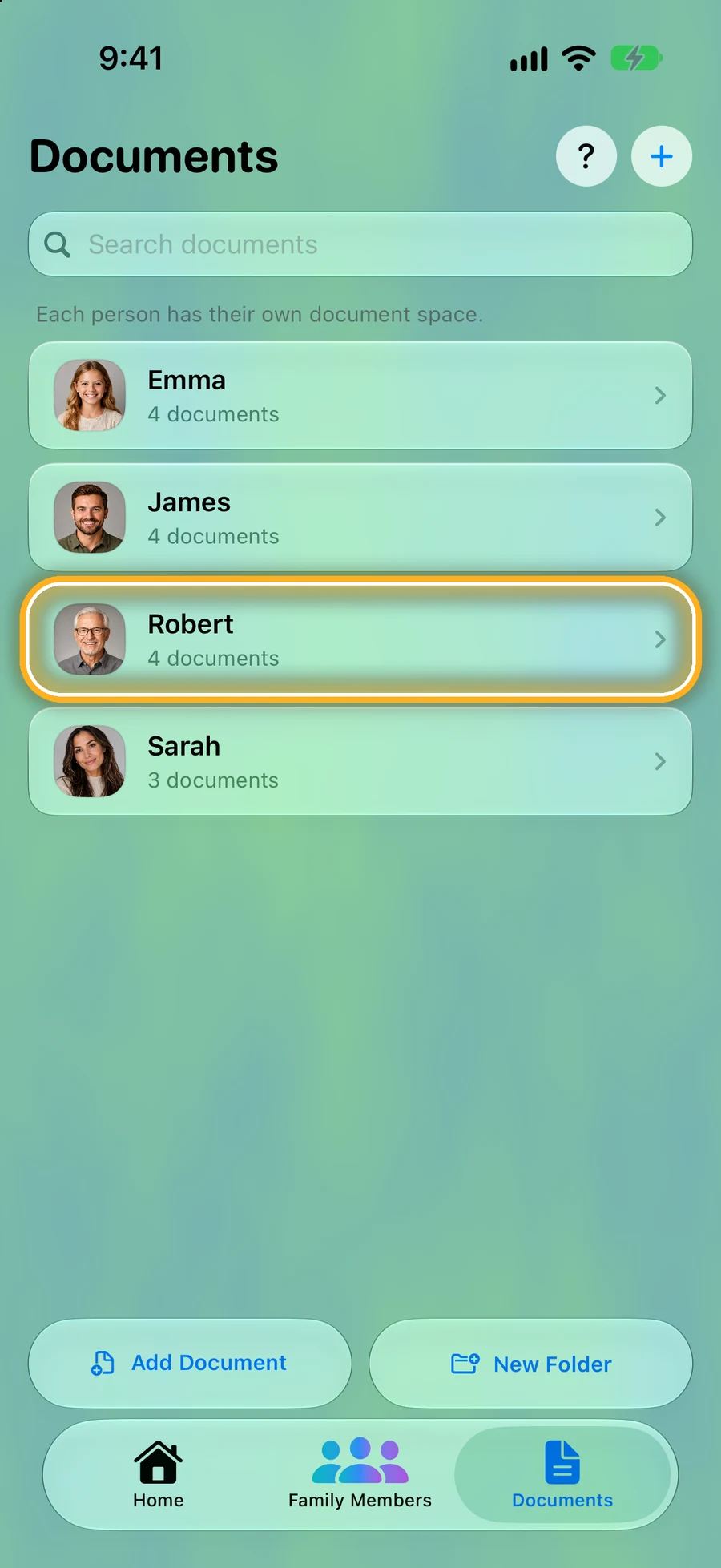
Step 16: Documents keeps every file, by person
Every photo and PDF you add anywhere ends up here too, sorted by person. Tap Add Document for a loose paper, like a school letter.
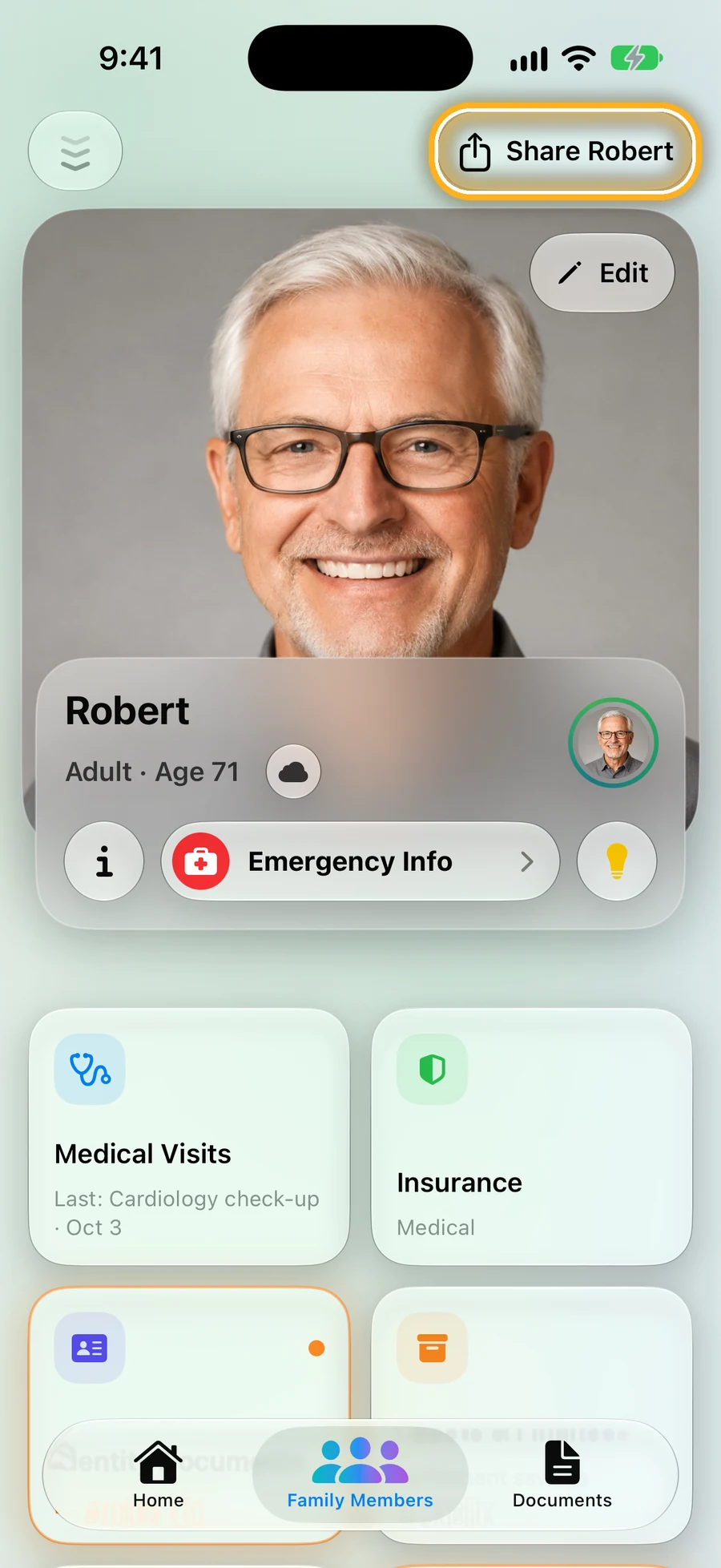
Step 17: Share a person with family
On a person's page, tap Share at the top. On iPhone, family on iPhone get Robert's page through iCloud and see changes as you make them. Family on Android? Send them a copy.
You share one person at a time, never your whole family.
Quick questions
- Do I need to sign up?
- No. There's no account, no email and no password. Open the app and add a person.
- Is it free?
- Yes, to start. Free covers two family members and up to three records per person in each main card. Appointments, reminders and emergency info are unlimited.
- Does Android look the same?
- These pictures are from an iPhone. The Android app has the same people, cards and Emergency Info, and some buttons look a little different. A few things, like the emergency PDF, are on iPhone only for now.
Still stuck? Write to us from the Support page, or read how your privacy works.
More picture guides: a medicine list for a parent, what to bring to the ER, and a free printable medication list.
Start with one person tonight.


Free to download · No account needed